
Solid-state drives made everyday PCs faster, quieter, and more reliable for many tasks—but they also changed the economics of classic “undelete.” Features like TRIM help the SSD manage free blocks efficiently, which often means deleted data stops being trivially recoverable sooner than it would on a spinning disk. That does not mean recovery is impossible every time; it means your expectations and your backup story need to match reality.
This article explains TRIM in plain language, separates internal SSDs from many external USB scenarios, and outlines a practical decision tree: when Recuva-style carving is still worth hours, when File History or cloud versions will beat it, and when you should stop DIY attempts entirely.
What TRIM does (and what it does not do)
When you delete a file, Windows may tell the SSD that certain blocks are disposable. The OS and drive firmware can then groom those blocks in the background. For you, the practical effect is simple: the window where “deleted but still on disk” is true may be short—sometimes very short—especially on busy system volumes.
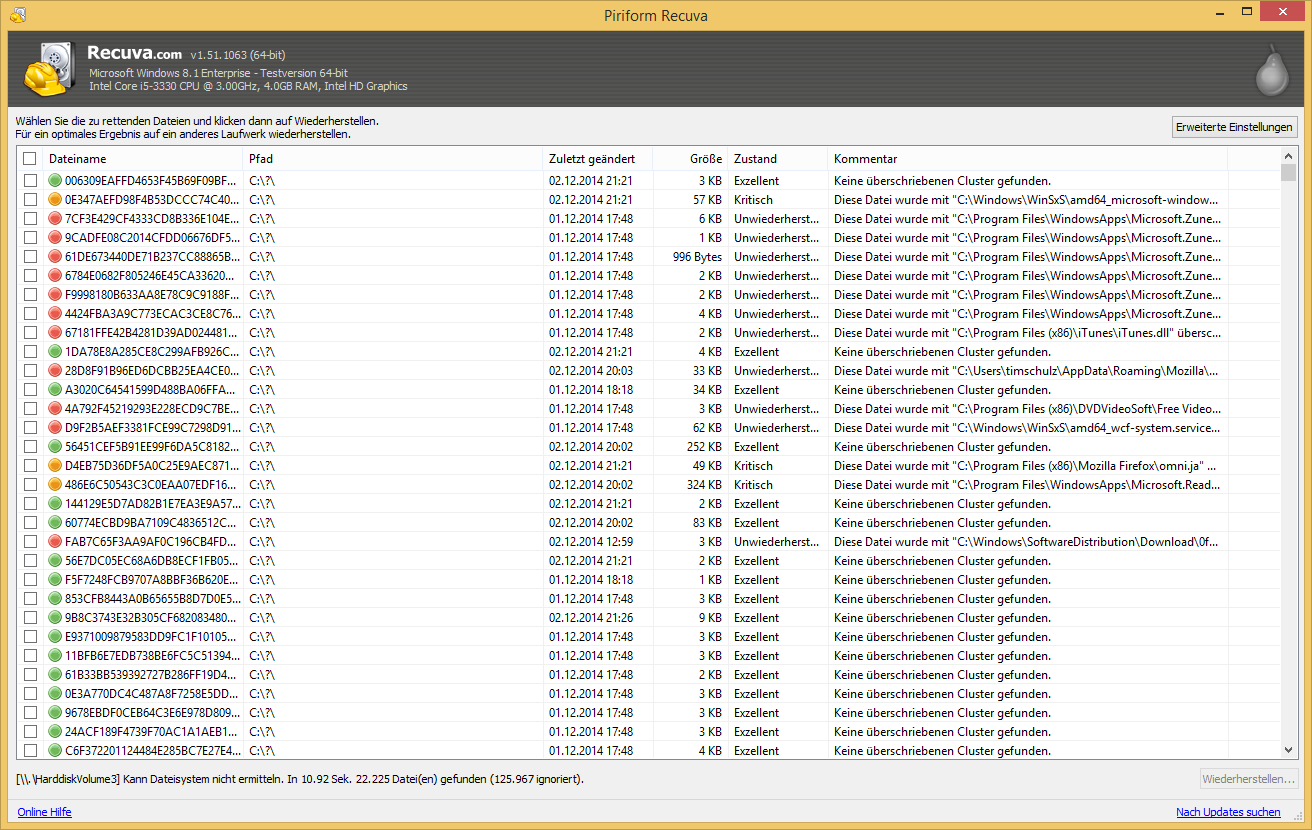
TRIM is not a magic erase button that guarantees zero recovery in all cases; it is a hint that shifts probabilities. You can still see large result lists in tools because carving can find old fragments, thumbnails, copies, and unrelated files. Your success metric is not “how many rows,” it is “do the bytes I need still exist intact enough to open.”
Internal SSD vs external USB SSD
Many external enclosures translate commands differently than an internal NVMe drive on the system board. Translation layers, USB bridges, and firmware quirks mean you should treat outcomes as situational: do not assume the internal SSD story matches a portable drive, and do not assume a portable drive matches a thumb stick.
- If the file lived on
C:and the machine was active after the delete, prioritize speed and fewer writes over “one more deep scan loop.” - If the file lived on a lightly used secondary SSD, you may still get lucky—especially soon after deletion.
- If you have cloud version history for the folder, check that before committing to overnight carving.
A practical decision tree under stress
Start with the fastest reversible layers: cloud recycle/version features, File History, restore points, and previous versions. If those are empty or irrelevant, move to undelete with strict discipline about destination disks and write avoidance. If previews repeatedly fail for the file type you need, pause and reassess before exporting terabytes.
When the data is valuable and the disk is degrading—clicking sounds on HDDs, repeated disconnects, SMART warnings—consumer software is the wrong tier. Imaging in a controlled way (often with specialist tooling) belongs in professional workflows; this site cannot cover lab procedures safely in a short post.
Why backups still beat every scan mode
The least glamorous advice is the most reliable: versioning, backups, and offline copies turn “disaster” into “restore from last night.” Undelete is a safety net for gaps in human habits—not a substitute for them. If you walk away with one habit from this page, make it “protect the disk first, scan second.”